PWCT Environment and the Goal Designer
Detailed reference for every window, menu, dialog, and tool in the PWCT development environment.
When we run PWCT, we see the next window:
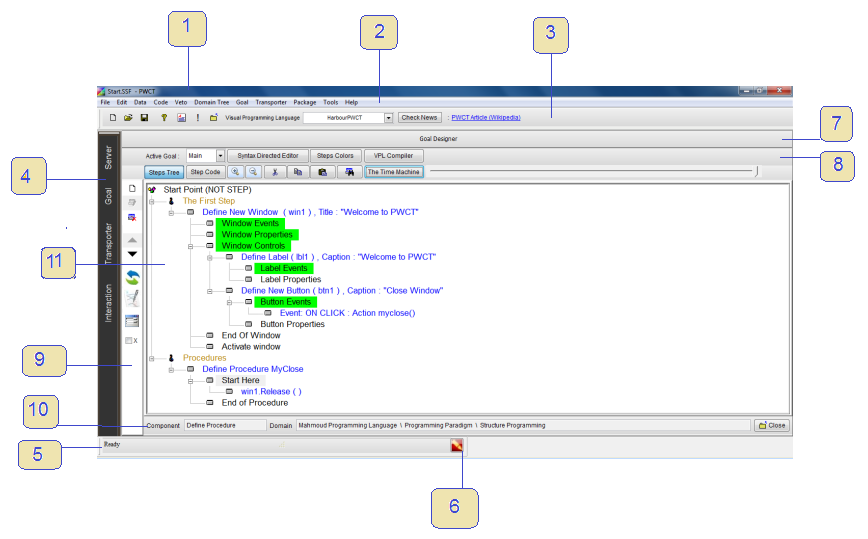
The following table explains the window items:
| Index | Description |
|---|---|
| 1 | Window Title and the active visual source file name, Start.SSF |
| 2 | Menubar |
| 3 | Toolbar |
| 4 | Main windows (Server Units, Goal Designer, Transporter Designer, Interaction Designer) |
| 5 | Statusbar |
| 6 | Button to open the Log Window |
| 7 | Child window title (Goal Designer) |
| 8 | Child window (Goal Designer) buttons – Group 1 |
| 9 | Child window (Goal Designer) buttons – Group 2 |
| 10 | Component Name and Domain Tree of the selected step |
| 11 | The Steps Tree |
| Menu | Description |
|---|---|
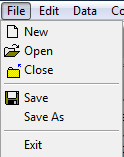 |
From this menu you can create new files, open files, save file content and close files.
You can also close PWCT. If the Goal Designer is active, options work with *.SSF files.
If the Transporter Designer is active, they work with *.TRF files.
If the Interaction Designer is active, they work with *.IDF files.
If the Interaction Pages Generator is active, they work with *.ISF files.
|
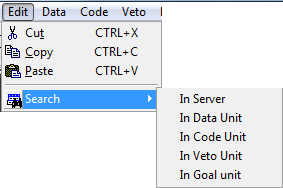 |
From this menu you can cut, copy and paste any text. If the Goal Designer is active, cut/copy/paste can work on steps in the Steps Tree. You can also use search to find items in the data unit, code unit, veto unit or goal unit. |
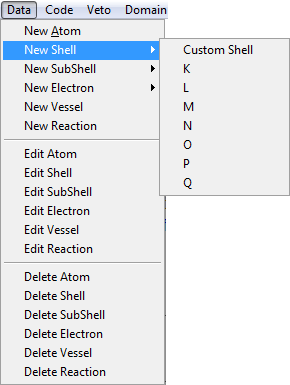 |
Create, edit and modify items in the Data Unit. The Data Unit represents the application data structure (optional). The Electron can be a Variable, Reference or Data. The SubShell is a group of Electrons – treat it as an Array, Stack or Queue. The Shell is an array of SubShells. The Atom is an array of Shells. The Vessel is an array of Atoms. The Reaction filters Atoms and Vessels. SubShells support Client-Server data structures: load, modify and upload values. Common Shell names: K, L, M, N, O, P, Q. Common SubShell names: S, P, D, F. Two SubShells can serve as a Virtual Data File (structure + data). |
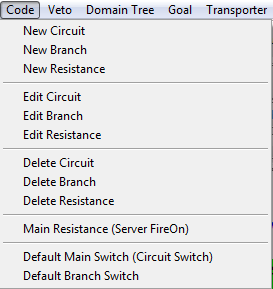 |
Create, modify and delete Circuits, Branches & Resistances. A Circuit is a group of Branches; a Branch is a group of Resistances; a Resistance is a block of code (procedure/function/method). The Code Unit can represent an event-loop. When it starts, Circuits execute. You can stop/enable circuits and branches via switches. "Server FireOn" executes all circuits; alternatively call only the main resistance. |
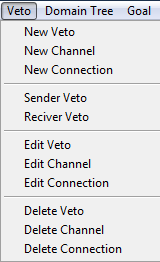 |
The Veto Unit controls communication between Servers. Create, modify and delete Vetos, Channels, and Connections. A Veto is a message. A Channel is a buffer. A Connection links two servers. Connected servers can exchange vetos and data. |
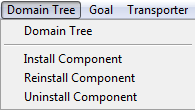 |
Manage the Domain Tree – install, reinstall and uninstall components (*.TRF files).
|
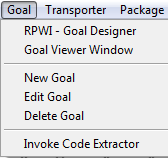 |
Manage Goals – create, modify and delete. A Goal overrides a resistance in the Code Unit. Use the Goal Designer to define the goal function. The Goal Viewer allows working on multiple steps simultaneously. The Code Extractor exports the Steps Tree and generated source code. |
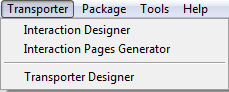 |
Create new components. The Interaction Pages Generator creates interaction and transporter files.
The Interaction Designer works with *.IDF files; the Transporter Designer with *.TRF files;
the Pages Generator with *.ISF files.
|
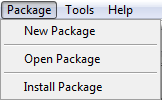 |
Create, modify and install Package files (*.PAK).
A package saves/restores the Domain Tree structure (component names and file names only, not content).
|
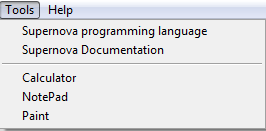 |
Run Supernova programs (*.NOVA) and open Supernova documentation.
Supernova is a scripting language built with HarbourPWCT. Also access Notepad, Calculator and Paint.
|
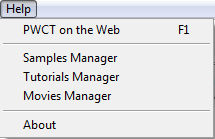 |
Open the PWCT website and the Samples/Tutorials/Movies manager. |
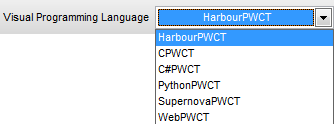
From the combobox you can change the active Visual Programming Language:
| VPL | Target Language |
|---|---|
| HarbourPWCT | Harbour |
| SupernovaPWCT | Supernova |
| CPWCT | C |
| C#PWCT | C# |
| PythonPWCT | Python |
| WebPWCT Under Development | HTML, CSS, JS & PHP |
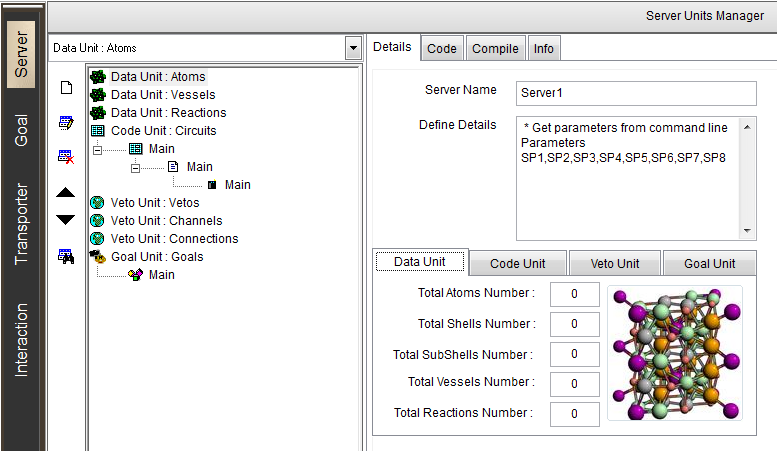
Using HarbourPWCT, your application is a Server. The Server Units Window manages the Server Units with a combobox to select items, a Units Tree containing four units (Data, Code, Veto & Goal), and buttons to Add, Edit, Delete, Move Up, Move Down & Search.
Within the Details tab you see the server name (e.g. Server1). Command-line parameters are stored in variables SP1–SP8. Sub tabs (Data Unit, Code Unit, Veto Unit & Goal Unit) provide information and statistics: number of Atoms, Shells, SubShells, Vessels & Reactions in the Data Unit; Circuits, Branches & Resistances in the Code Unit; Connections, Channels & Vetos in the Veto Unit; and Goals in the Goal Unit.
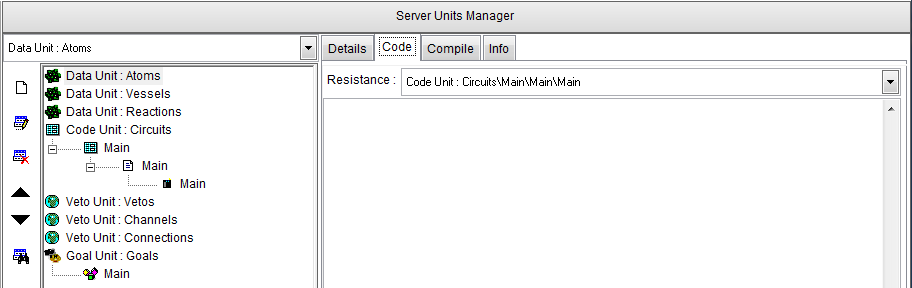
In the Code tab you write the resistance code. Each resistance is a block of code. Call a resistance with:
Call Resistance Circuits\CircuitName\BranchName\ResistanceName.
The code can be replaced by a goal from the Goal Unit.
The Compile tab controls the visual source type (Console or GUI). The "Server Extension" checkbox determines whether the source is a complete application or a sub-part. When disabled, Ctrl+R runs the application; when enabled it generates only the source code file for linking.
Run options: Call Main Resistance (executes the main code block) or Server FireOn (executes circuits sequentially, respecting circuit/branch switches).
Three buttons are available: Generate (produces source code), Build (generates + compiles), and Run (generates + compiles + executes).
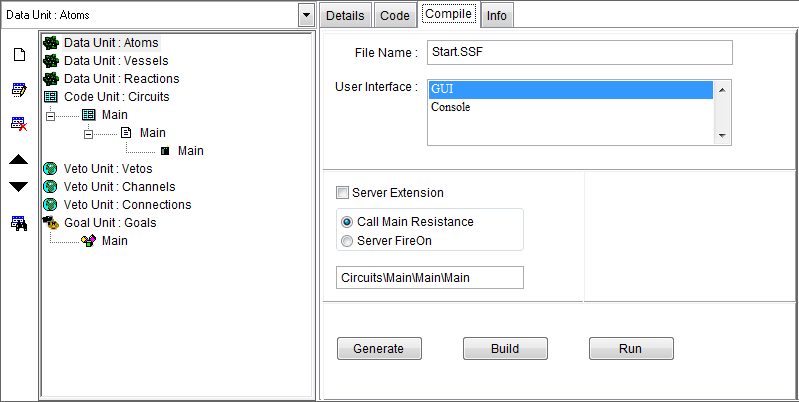
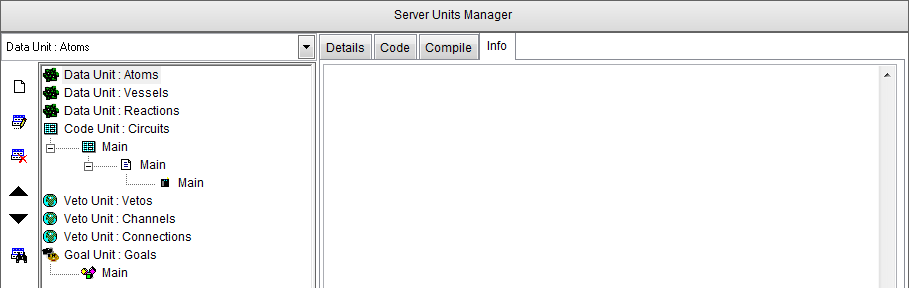
The Info tab provides an edit box for comments.
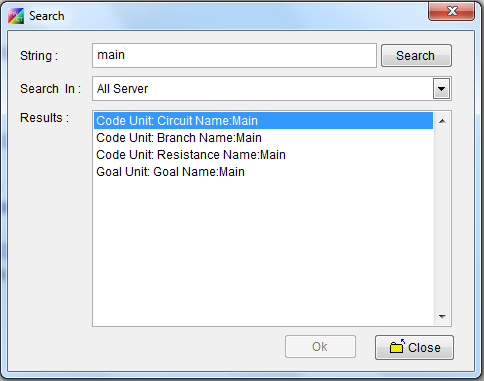
From the Menubar → Edit Menu, open the Search window to find items in data, code, veto and goal units.
When using HarbourPWCT with the Goal Designer active, create a new file from the toolbar, menubar, or by pressing Ctrl+N:
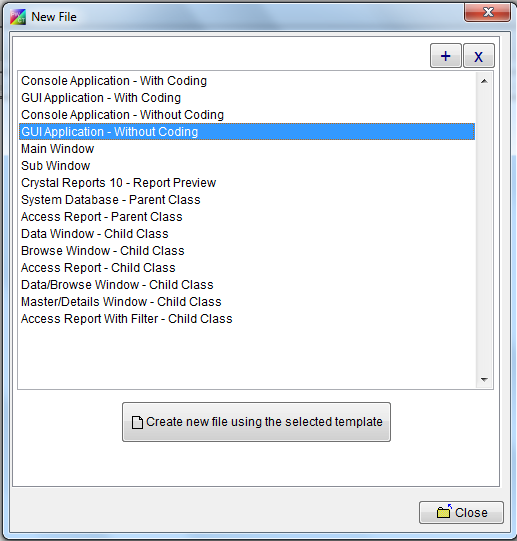
Select a template to create Console/GUI applications by writing code (Resistance Code) or without coding using the Goal Designer. Templates for database applications using OOP and ADO are also available.
Press Enter, double-click an item, or click "Create" to use the template. Use + and − buttons to add/remove templates.
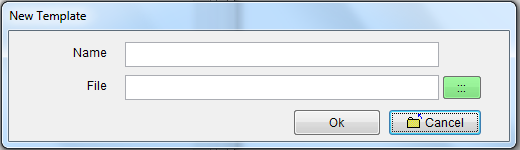
Define a new template and add it to the template list. Provide a template name and file (type the name or browse for it).
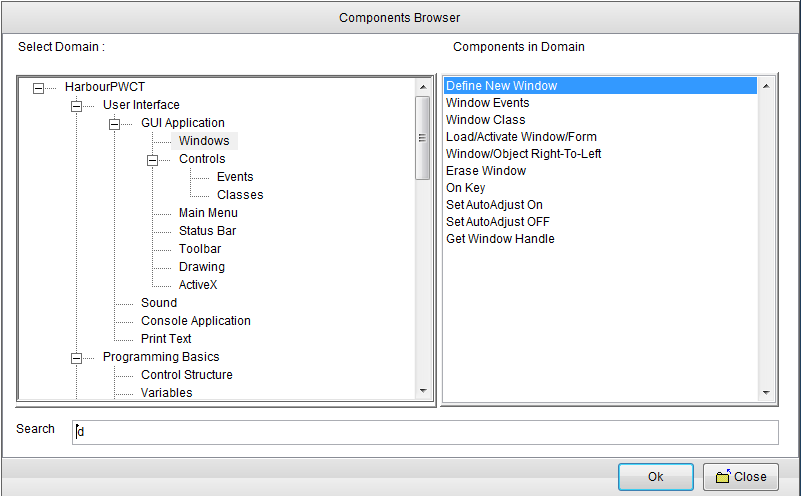
Select a component to generate steps in the Steps Tree. First select a domain from the Domain Tree, then choose a component from the related list. Interactive search finds components as you type. Use Enter, double-click, or "OK" to confirm; Esc or "Cancel" to abort.
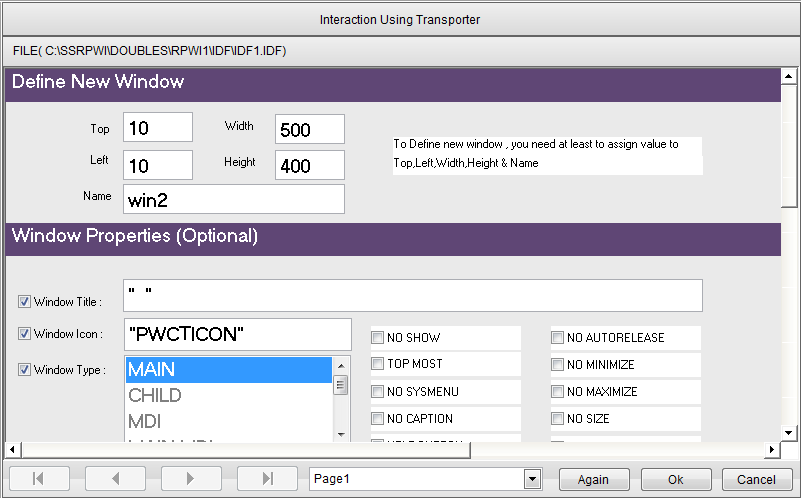
Enter data into interaction pages (data-entry forms). Click "OK" or press Ctrl+W to finish and see generated steps. Click "Again" or Ctrl+A to reuse the same component. Navigate multiple pages using buttons or the pages combobox. Right-click in textboxes for shortcuts (color, font, object selection, etc.).
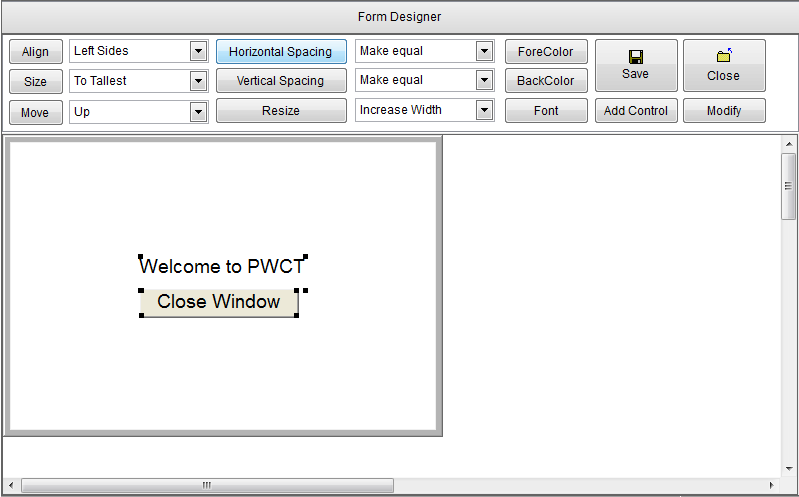
Open the Form Designer from the Goal Designer using the button or Ctrl+F. If multiple windows exist, select one first. Design the UI using "Add Control", double-click or "Modify" to edit interaction pages. Move/resize controls via keyboard or mouse. Set font, text color, and back color for one or more controls. Layout options: Align, Size, Move, Spacing and Resize. Click "Save" or "Cancel" when done.
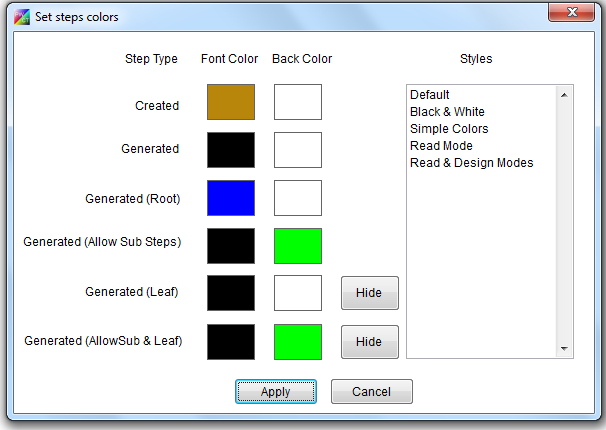
Click the "Steps Colors" button in the Goal Designer. Select step colors by type, choose from preset styles, and hide certain step types to reduce visual clutter (e.g. hide "Generated Leaf" steps when reading the tree).
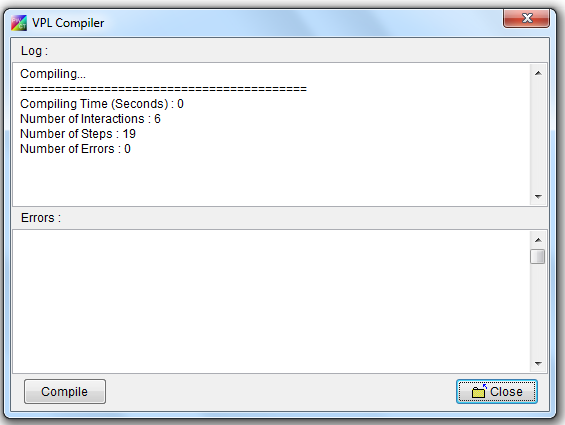
Run the VPL Compiler from the Goal Designer to detect errors in the visual source. Errors typically occur when working with the Syntax Directed Editor turned OFF. After compilation you see the count of Interactions, Steps, and Errors.
Detectable errors:
| Error Message |
|---|
Error : Step ("Step Name") Enable/Ignore status is not correct |
Error : Step ("Step Name") is not expected to be in this order |
Error : Step ("Step Name") order is not correct |
Error : Step ("Step Name") Contains Bad Substep |
Error : Step ("Step Name") is duplicated |
Error : Step ("Step Name") Parent is not correct |
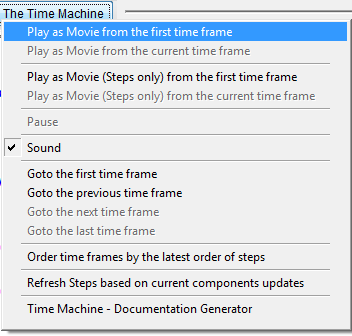
The Time Machine button in the Goal Designer lets you play the program as a movie – watching the Steps Tree being built step by step, from selecting components to entering data in interaction pages. You can stop, continue, and run the program at any point to see runtime results. The voice reads step names (can be toggled on/off), and you can choose to view steps only (no interaction pages/components browser).
Additional options include refreshing the steps tree after updating visual components and running the documentation generator to create HTML tutorials explaining the program step by step. This generator has been used to create thousands of tutorial pages available online.
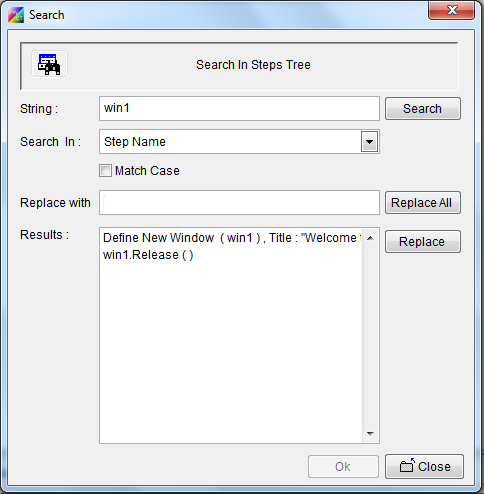
Open the search window from the Goal Designer's search button. Find steps by typing part of the Step Name and/or Step Data, and perform replace operations on the steps tree.
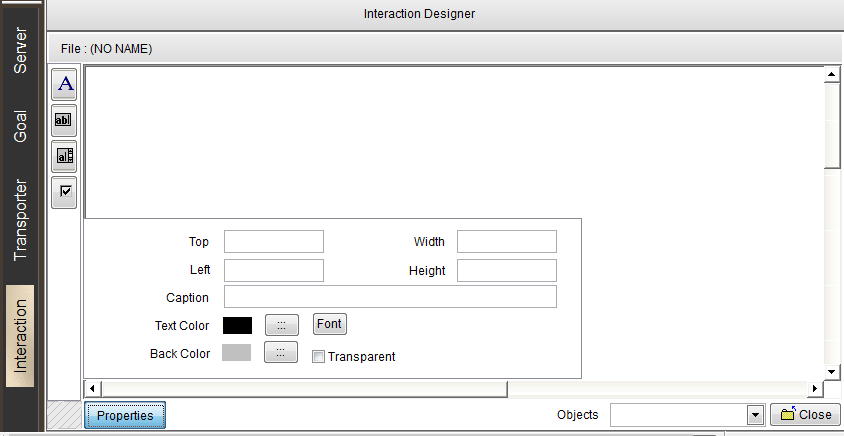
Design interaction pages used by visual components (transporters). Pages are data-entry forms with Label, Textbox, Checkbox & Listbox controls. Textbox values are stored in named variables. Checkbox variables are 1 (active) or 0 (inactive). Listboxes have configurable items, defaults, and return either text or index.
The left toolbar adds controls. The Properties tab (toggled via button) sets control properties. The Objects Combobox lists all page objects. Right-click the page region to set page color/picture. Move and resize objects with mouse or via the Properties tab.
When active, the File menu works with *.IDF files. Most pages are generated via the Interaction Pages Generator, then refined in the designer. Import listbox items individually or from text files.
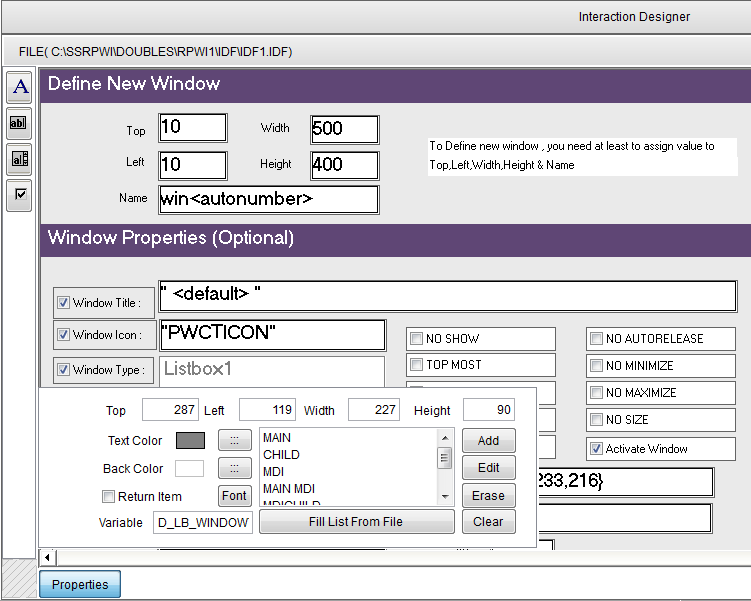
Special keywords: <DEFAULT> sets the default control, <AUTONUMBER> requests an automatic name, and <LISTBOXDEFAULT> in an item name sets the default listbox selection.
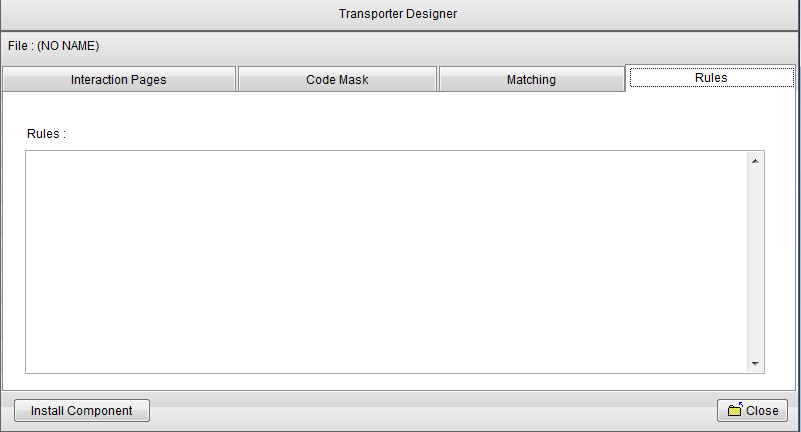
The visual component in PWCT is called the Transporter. It takes input from interaction pages and transports it to the code mask interpreter. The code mask is a script controlling visual representation (steps) and text-based source code generation. Matching connects interaction page variables with code mask variables. Rules define component relationships and are used by the Syntax Directed Editor and VPL Compiler.
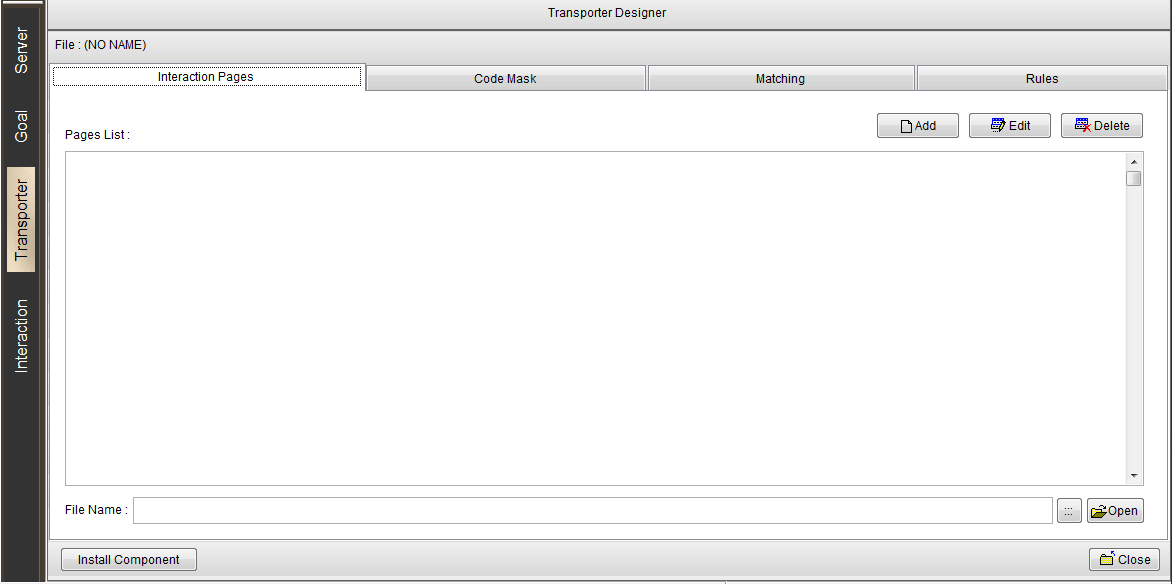
The designer displays the active *.TRF file and has 4 tabs:
Tab 1 – Interaction Pages: Each page has a name and an *.IDF file. Use Add, Edit & Delete. The "Open" button opens a page in the Interaction Designer. "Install Component" adds the finished component to the Domain Tree.
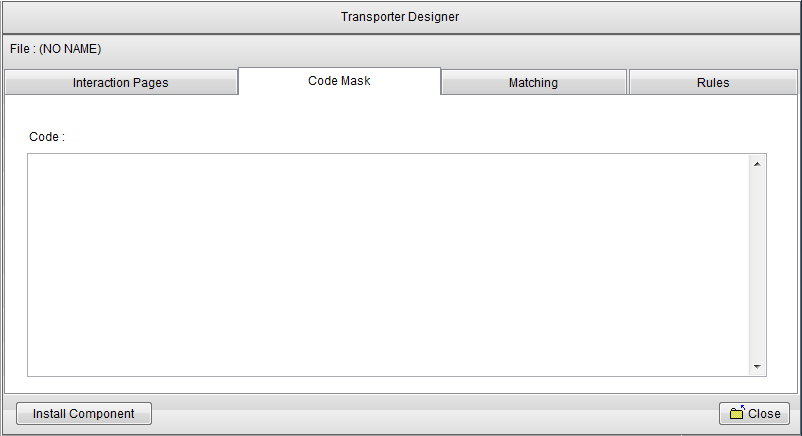
Tab 2 – Code Mask: Write the code mask script in the RPWI scripting language. Right-click to list all available instructions.
| Instruction | Description |
|---|---|
<RPWI:POSITIVE> | Execute block when test result is TRUE |
<RPWI:NEGATIVE> | Execute block when test result is FALSE |
<RPWI:VALUE> | Set the test condition value (e.g. "1" or "0") |
<RPWI:TEST> | Start a test block with variables to test |
<RPWI:ENDTEST> | End a test block |
<RPWI:PUTMARK> | Store active step number in a register (1–20) |
<RPWI:SETMARK> | Set active step from a register (1–20) |
<RPWI:NEWSTEP> | Create new step in the Steps Tree |
<RPWI:SELECTSTEPBYNAME> | Select parent step by name |
<RPWI:TABPUSH> | Add nested level to generated source code |
<RPWI:TABPOP> | End nesting level |
<RPWI:NOTE> | Add a comment |
<RPWI:NEWVAR> | Create new variable |
<RPWI:SETVARVALUE> | Set variable value |
<RPWI:SELECTVAR> | Select active variable |
<RPWI:REPLACEVARSWITHVALUES> | Replace code mask variables with their values |
<RPWI:IGNORELAST> | Remove trailing characters from generated code |
<RPWI:IGNORELEVEL> | Set level for IGNORELAST (current step or parent) |
<RPWI:INFORMATION> | Add information to the generated step |
<PWCT:TOFILE> | Start code generation to a file (set file name) |
<PWCT:ENDFILE> | End the file generation block |
<PWCT:ADDVAR> | Add a variable for code-extraction-time replacement |
<PWCT:SETVAR> | Set the variable name |
<PWCT:MERGENEXTTOPREV> | Merge next code line into previous |
<PWCT:IGNORELAST> | Same as RPWI:IGNORELAST, but at extraction time only |
< > | Wrap variable names or instructions between < and > |
| generated code | Any text not a variable or instruction is output directly |
| variables in code | Insert variables replaced with values from interaction pages or code mask |
| nested tests | <RPWI:TEST> blocks can be nested |
| test condition | Variable(s) compared against the test value |
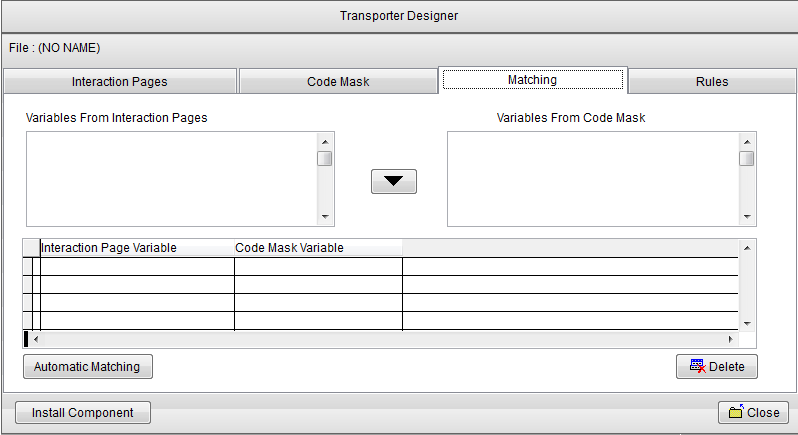
Tab 3 – Matching: Match interaction page variables with code mask variables. Select two variables and click the Down button, or use automatic matching when names are identical. Delete matches by selecting and clicking "Delete".
Tab 4 – Rules: Control relationships between components. Rules determine parent/child component types and which step allows adding child steps.
| Rule | Description |
|---|---|
AllowParent:Root | Parent must be the Start point (nested comment steps like "The first step" also allowed) |
AllowParent:General | No parent restrictions – any parent allowed |
AllowParent:Custom | Specify allowed parent components by name |
AllowInteraction: N | Determine which step allows adding child steps |
Scope: General | After AllowInteraction – no child restrictions |
Scope: Custom | Specify allowed child components by name |
Allow: name | Add a component to the allowed list |
End | End the allowed components list |
Allowroot: N | Set a step as another root step |
NoDuplication: var | Prevent duplication of an interaction page variable |
Scope: Parent | After NoDuplication – check duplication within parent only |