PWCT Features – Compatible (Optional)
Access, view, and extract the generated text-based source code behind your visual programs.
When we program using PWCT to create our applications using Visual Programming (VP), we don’t write the text based source code directly — this code is generated by PWCT while we are using the visual programming language components.
We can see/edit the generated source code and we can insert new code, but we don’t need to do this in order to create our applications, where the visual programming language components must be enough to wrap the text based programming language features.
To see the step code, inside the Goal Designer, select the step then click on the “Step Code” button.
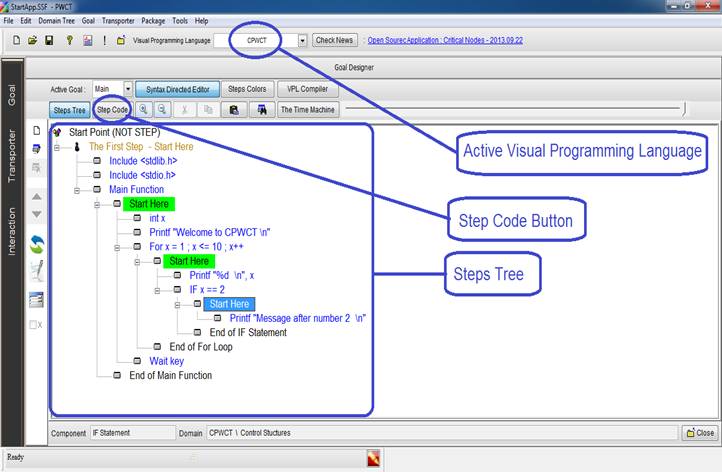
Fig. 1 CPWCT
To see the code behind the step For x = 1 ; x <= 10 ; x++, first select the step then click on the “Step Code” button.
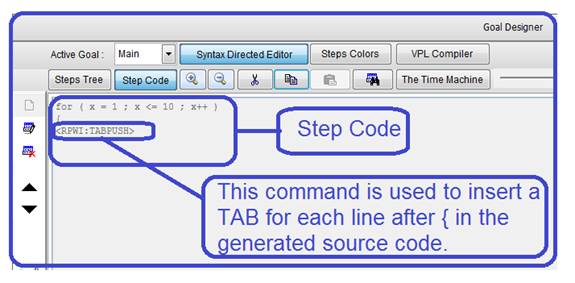
Fig. 2 Step Code
You can create new steps inside the steps tree for Comments and/or organization. Another usage of this feature is to create a step for inserting a block of code.
When you run your program, the text based source code is generated. The source files are not deleted and you can see them in the application folder beside the visual source files (*.SSF & *.FPT).
When you use CPWCT, the generated source code files will be *.C & *.H. Each VPL generates its own file types:
| Visual Programming Language | Generated Source Code Files |
|---|---|
| CPWCT | *.C & *.H |
| HarbourPWCT | *.PRG & *.CH |
| PythonPWCT | *.PY |
| SupernovaPWCT | *.NOVA |
| C#PWCT | *.CS |
Table 1. Generated source code files for each VPL
You can Save, Build & Run the application or just generate the source code.
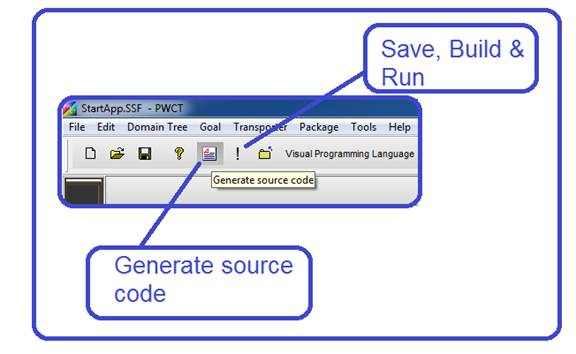
Fig. 3 Generate Source Code
If the visual source file contains more than one goal, generating the source code will generate the code behind all of the goals.
If you want to get the code behind one or more goals, you can use the Code Extractor program.
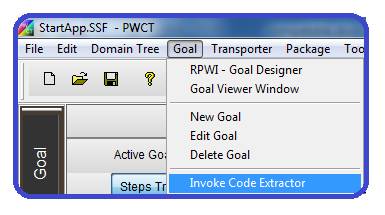
Fig. 4 Running the Code Extractor application
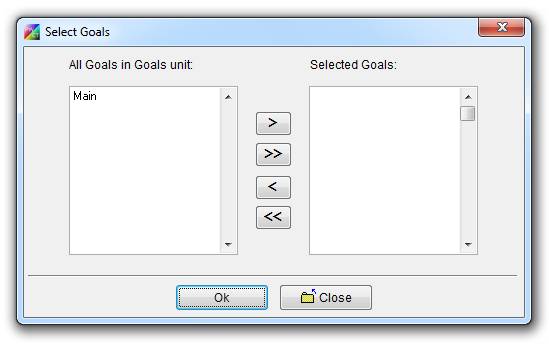
Fig. 5 Select the Goals
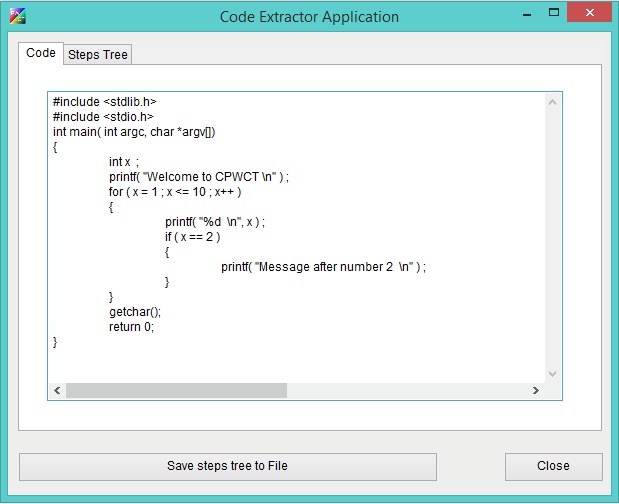
Fig. 7 The Code Extractor application
Another feature here: you can get the steps tree as text, if you want to copy it then paste in a forum while asking a question or providing an answer.
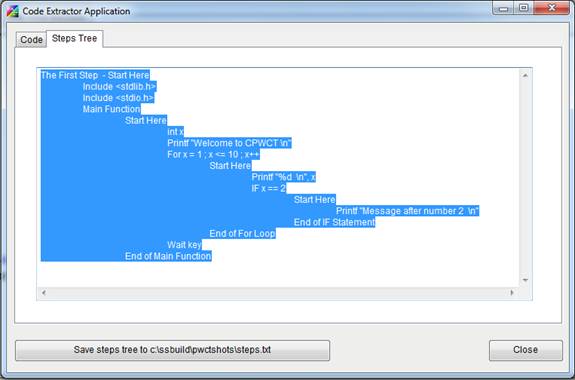
Fig. 8 Getting the steps tree as text
The previous example is done using CPWCT. From the toolbar we can change the active visual programming language to use any one of them like HarbourPWCT, PythonPWCT, SupernovaPWCT & C#PWCT.
We can extend PWCT to support any text based programming language, also we can extend any of these visual programming languages by creating new visual components.
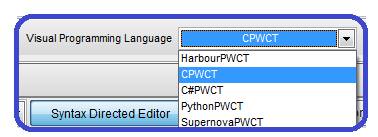
Fig. 9 Changing the active visual programming language (VPL)